Transfers
Using the transfer screen
A dual-panel browser with drag-and-drop, folder operations, conflict handling, and downloads.
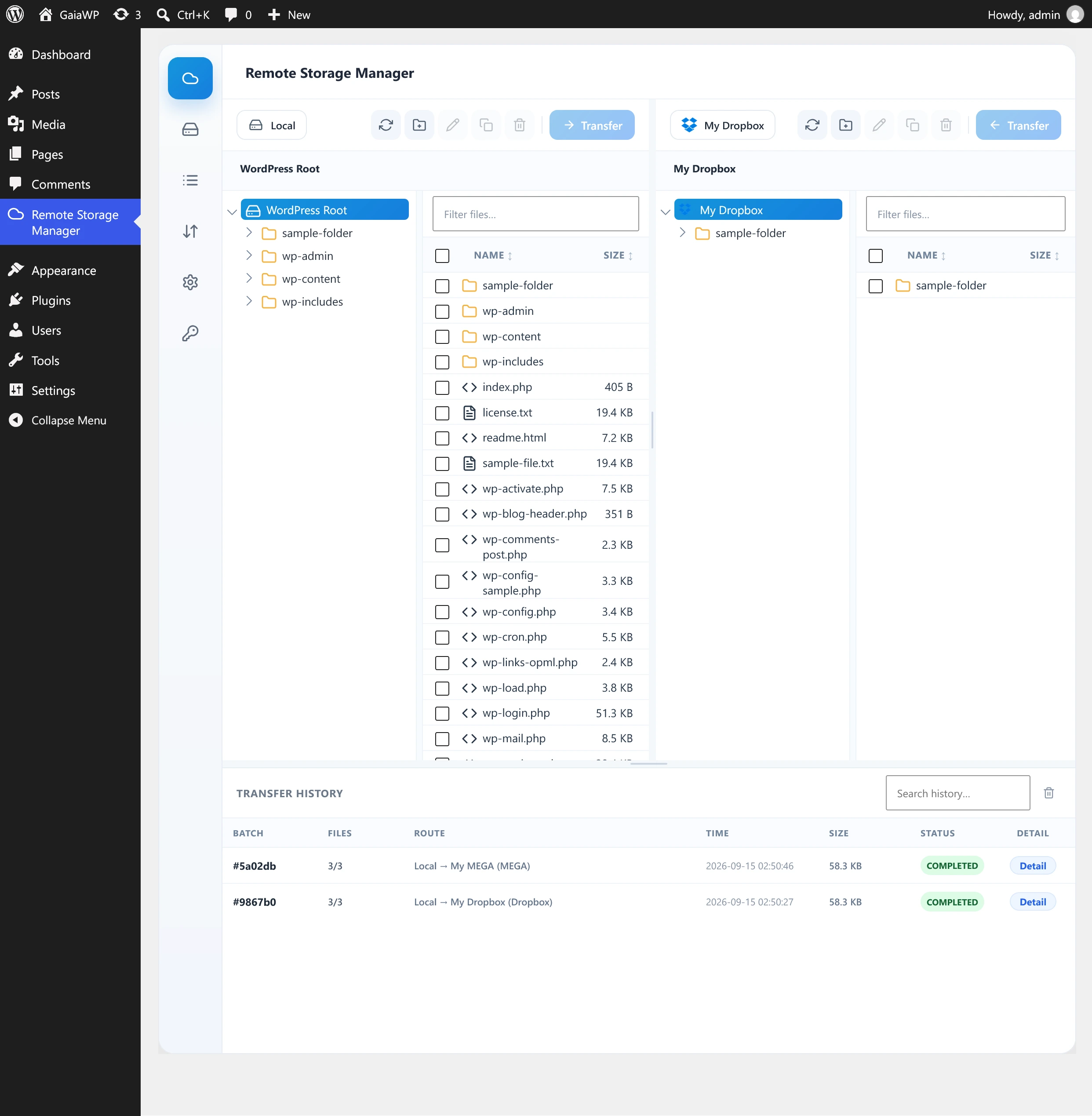
Open Remote Storage Manager → Transfer. The screen has two file browser panels side by side and a transfer history panel at the bottom.
Panels
- Both panels work the same way — either one can act as the source, and transfers can run in both directions at the same time.
- Each panel has a storage dropdown at the top. The dropdown lists Local (WordPress storage) plus every connected account.
- Drag the vertical resizer between panels to change their widths.
Each panel's toolbar contains:
| Button | Action |
|---|---|
| Refresh | Reload the current folder listing. |
| New Folder | Create a folder in the current directory. |
| Rename | Rename the selected item. |
| Duplicate | Copy the selected item in place. |
| Delete | Delete the selected item(s). |
| Transfer | Move selected files to the opposite panel. |
| More (⋯) | Overflow menu with the same actions. |
Each panel's Transfer button sends the files selected in that panel to the opposite panel. Both panels can transfer at the same time, in either direction, and tooltips explain the direction before you click.
Browsing files
- Use the folder tree on the left of each panel to navigate.
- Use the breadcrumb above the listing to jump back to any parent folder.
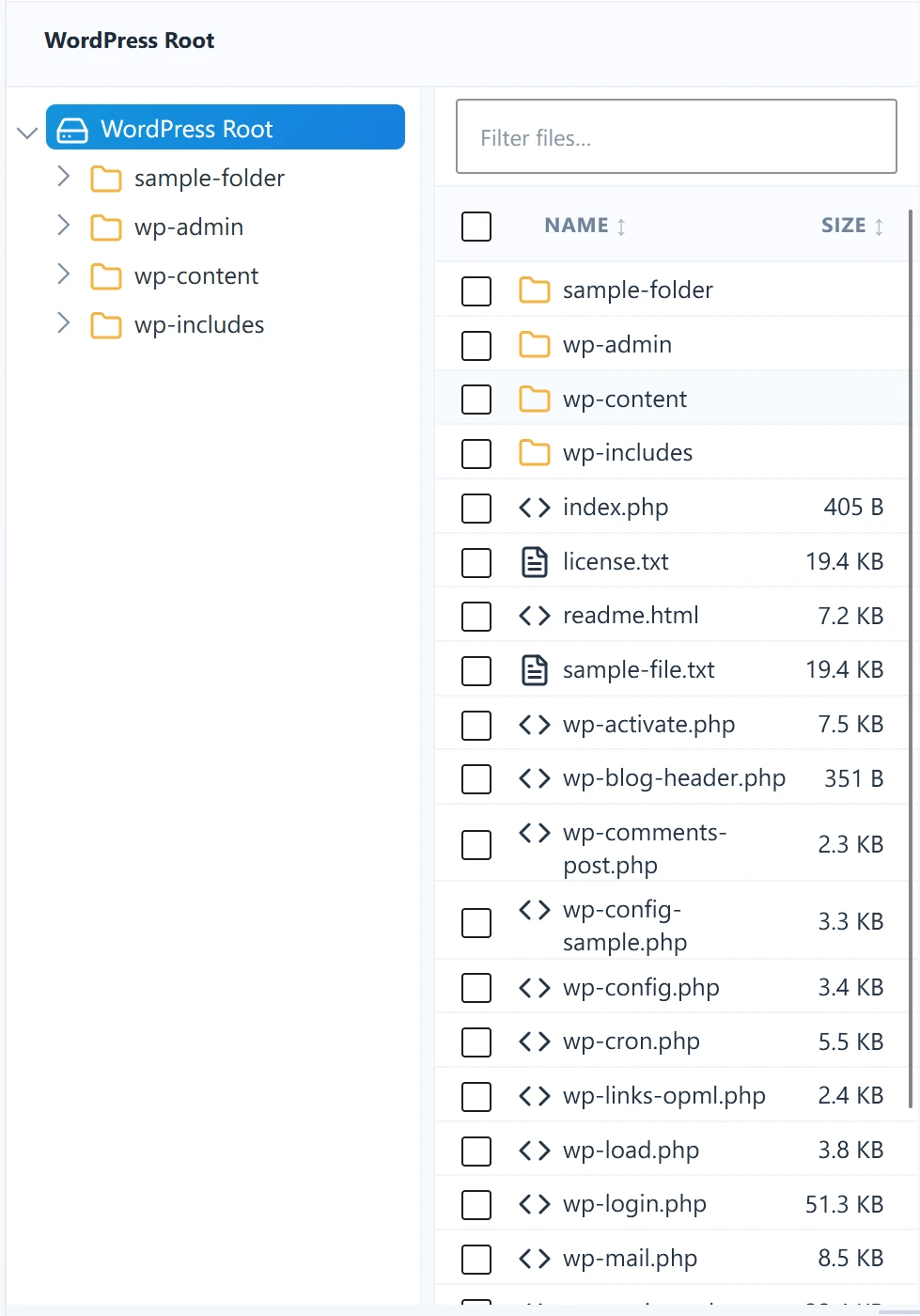
- The file listing shows Name and Size columns, sortable by clicking the column headers.
- Type in the Filter files… box to narrow the current listing by name.
Selecting files
- Tick a row's checkbox to select a single item.
- Use the header checkbox to select all rows in the current view.
- The selection counter below the list shows how many items and total size are selected.
- Folders can be selected and transferred just like files.
Transferring files
- Select one or more files and/or folders in a panel.
- In the opposite panel, choose the storage and navigate to the target folder.
- Click Transfer.
- If any name conflicts exist, the Start Transfer dialog appears (see conflict handling below).
- Click Transfer in the dialog to begin.
A progress bar appears with overall percentage, file count, bytes transferred, speed, and estimated time remaining. A per-file list shows each file's status.
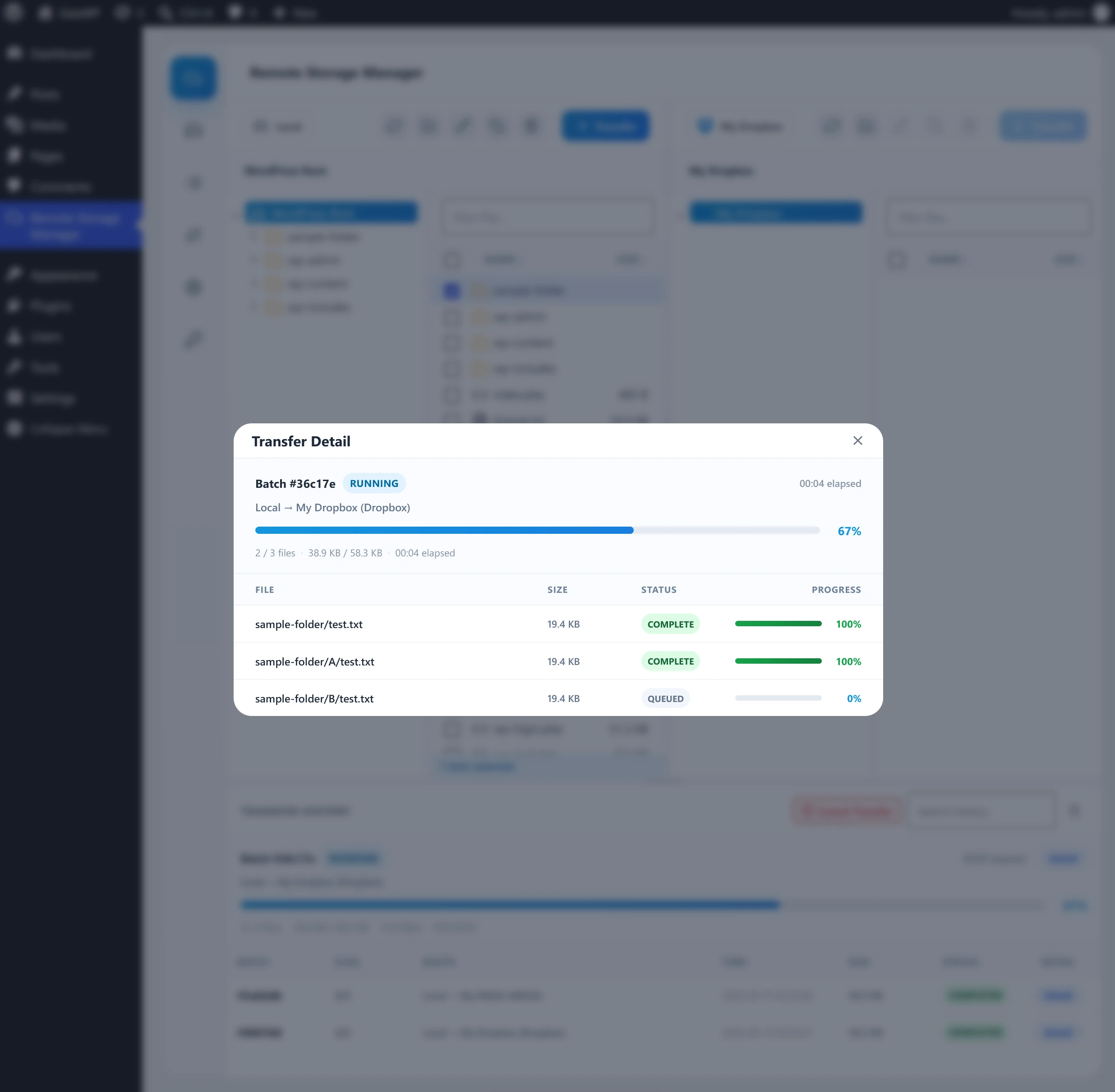
To cancel, use the cancel control on the progress area. Cancelling stops the remaining queue; files already completed stay in place.
Conflict handling
When a file or folder already exists at the destination, the Start Transfer dialog asks how to proceed:
| Option | Behaviour |
|---|---|
| Skip (default) | Do not transfer items that already exist. |
| Overwrite | Replace existing items with the new copies. |
| Keep both | Save the new copy alongside, adding a numeric suffix (name-1, Folder-1, …). |
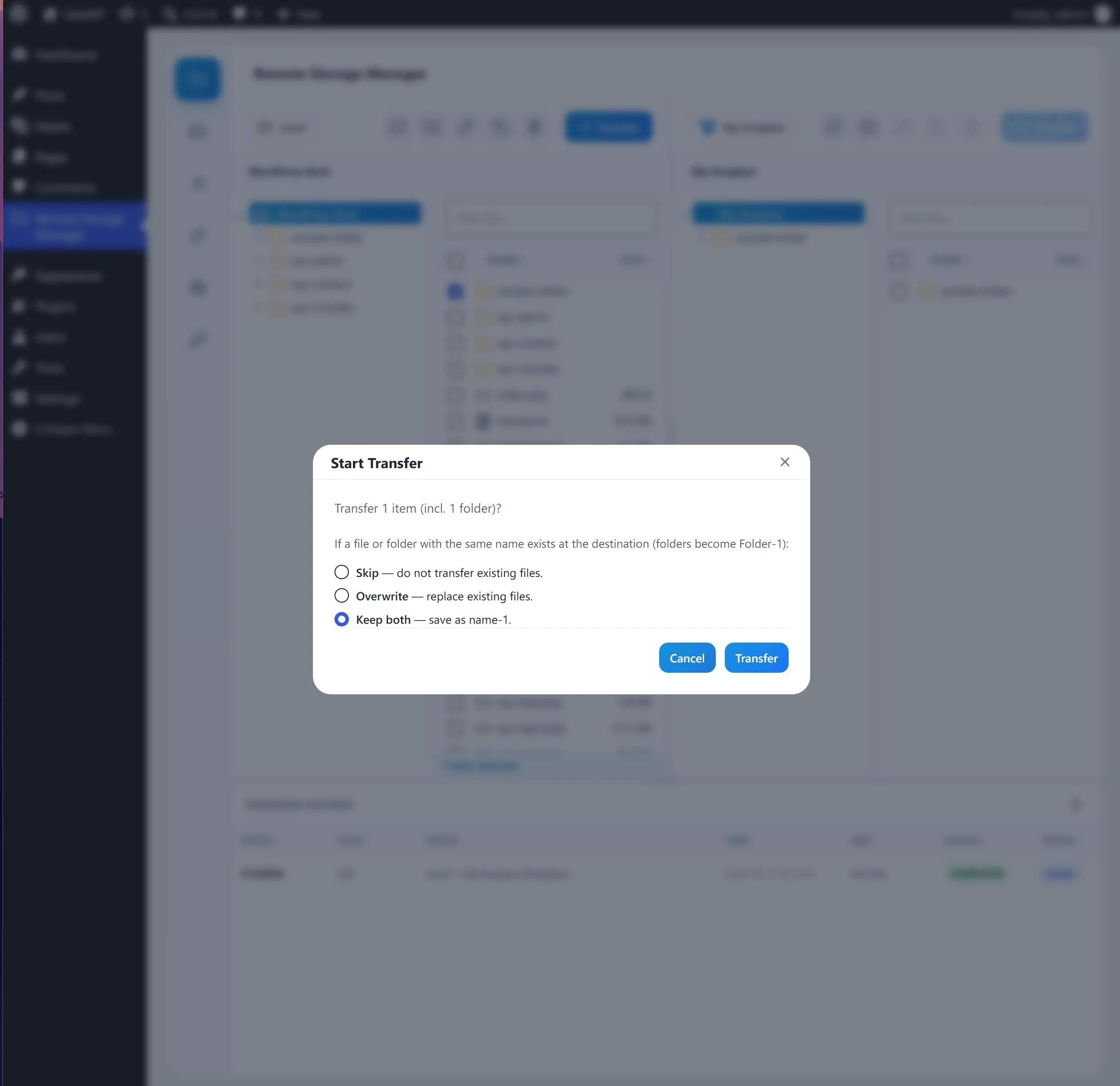
The dialog only appears when a conflict is actually detected, so conflict-free transfers start immediately.
File operations
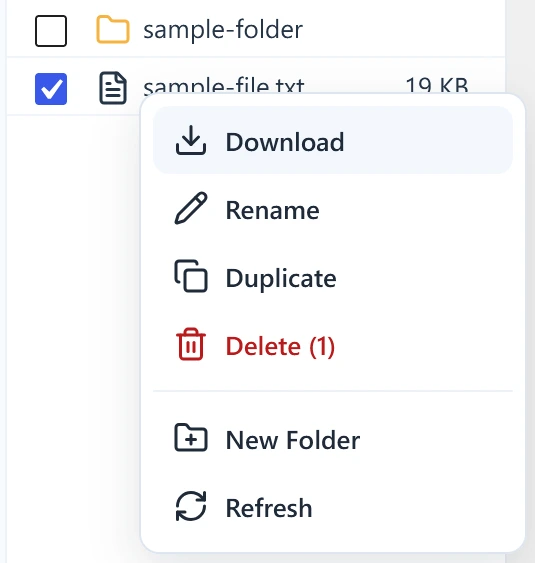
All file operations are available from the panel toolbar, the More menu, and the right-click context menu.
| Operation | Description |
|---|---|
| New Folder | Create a folder in the current directory. |
| Rename | Rename a file or folder in place. |
| Duplicate | Create a copy in the same folder. |
| Delete | Delete selected items, with a confirmation dialog listing them. |
| Move | Move an item to another folder via drag and drop. |
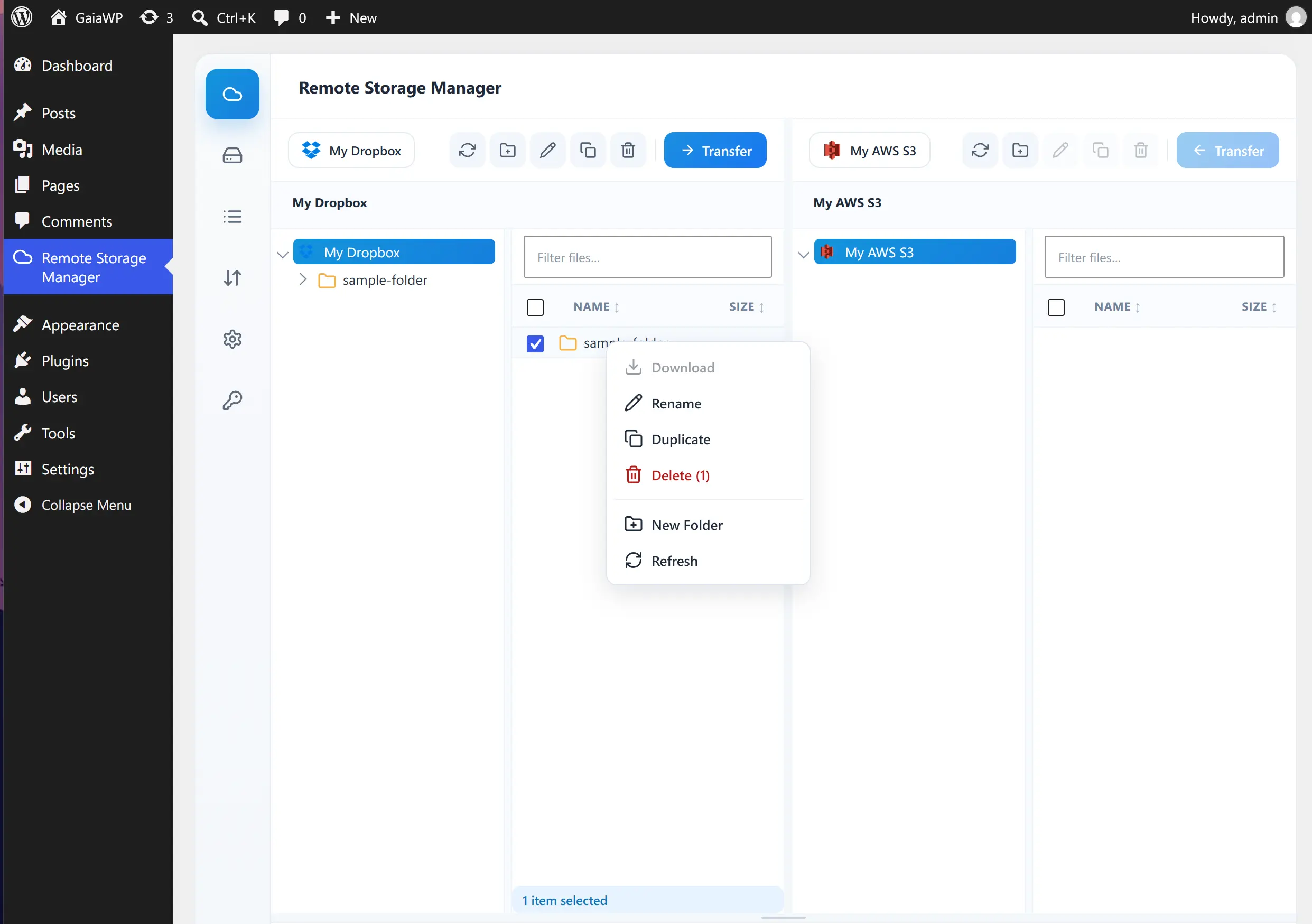
Deleting prompts a confirmation modal that lists the affected items before anything is removed.
Drag and drop
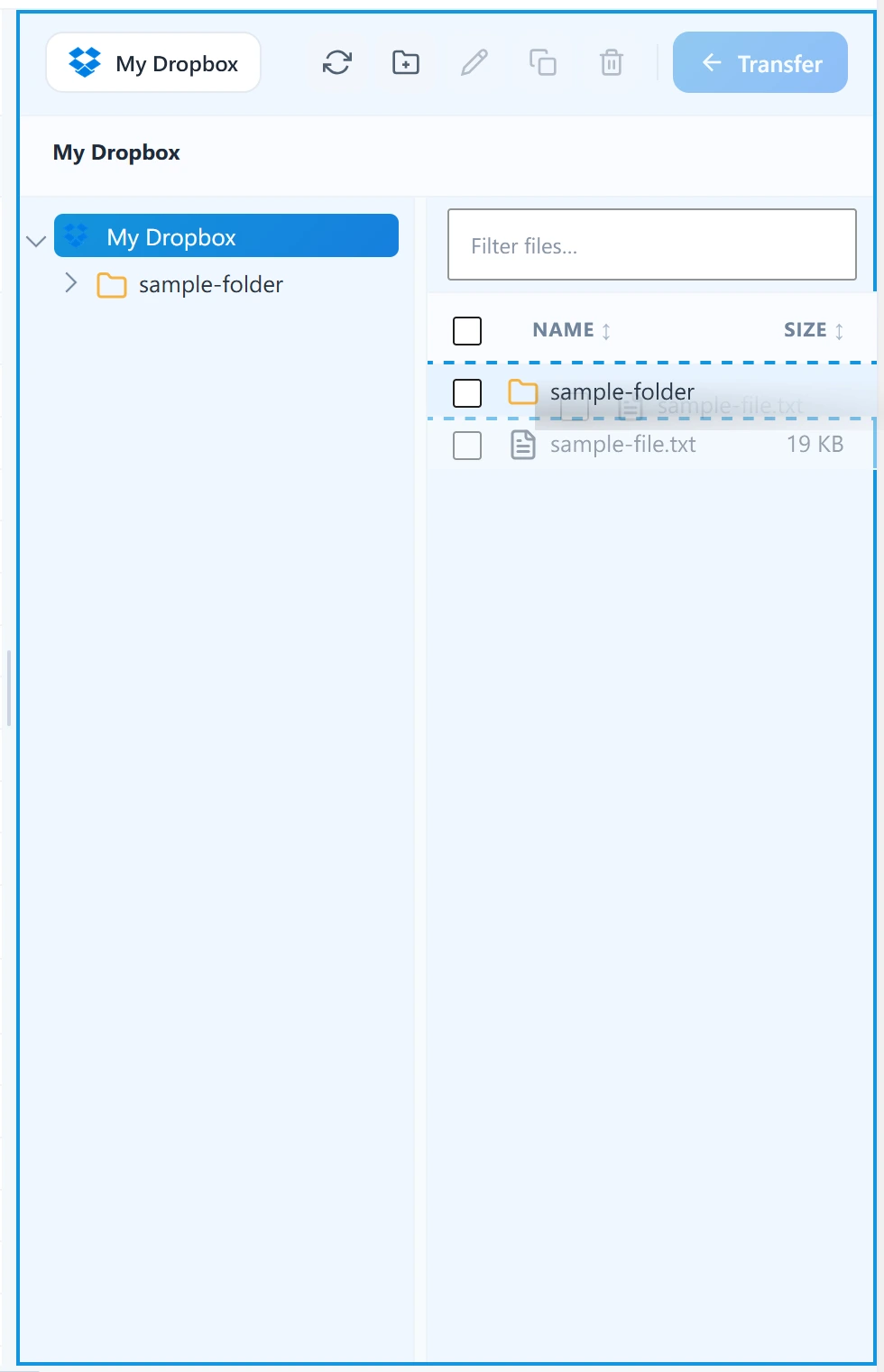
- Drag selected files from one panel and drop them onto the other panel to start a transfer.
- Folders dropped onto a folder in the target panel are moved into it.
Downloading files
Use the right-click Download action (or the context menu) on a remote file to download it to your computer. For large files, the plugin prepares the download first and then streams it, so the browser can show its native download progress. Multiple files can be downloaded in sequence.