
Providers & accounts
Connecting an account
Use OAuth sign-in or a credential form — each provider shows only the fields it needs.
Open the provider picker
Open Remote Storage Manager → Accounts and click Add Account. A provider picker grid appears. Selecting a provider opens the appropriate step — either an OAuth sign-in step or a credentials form.
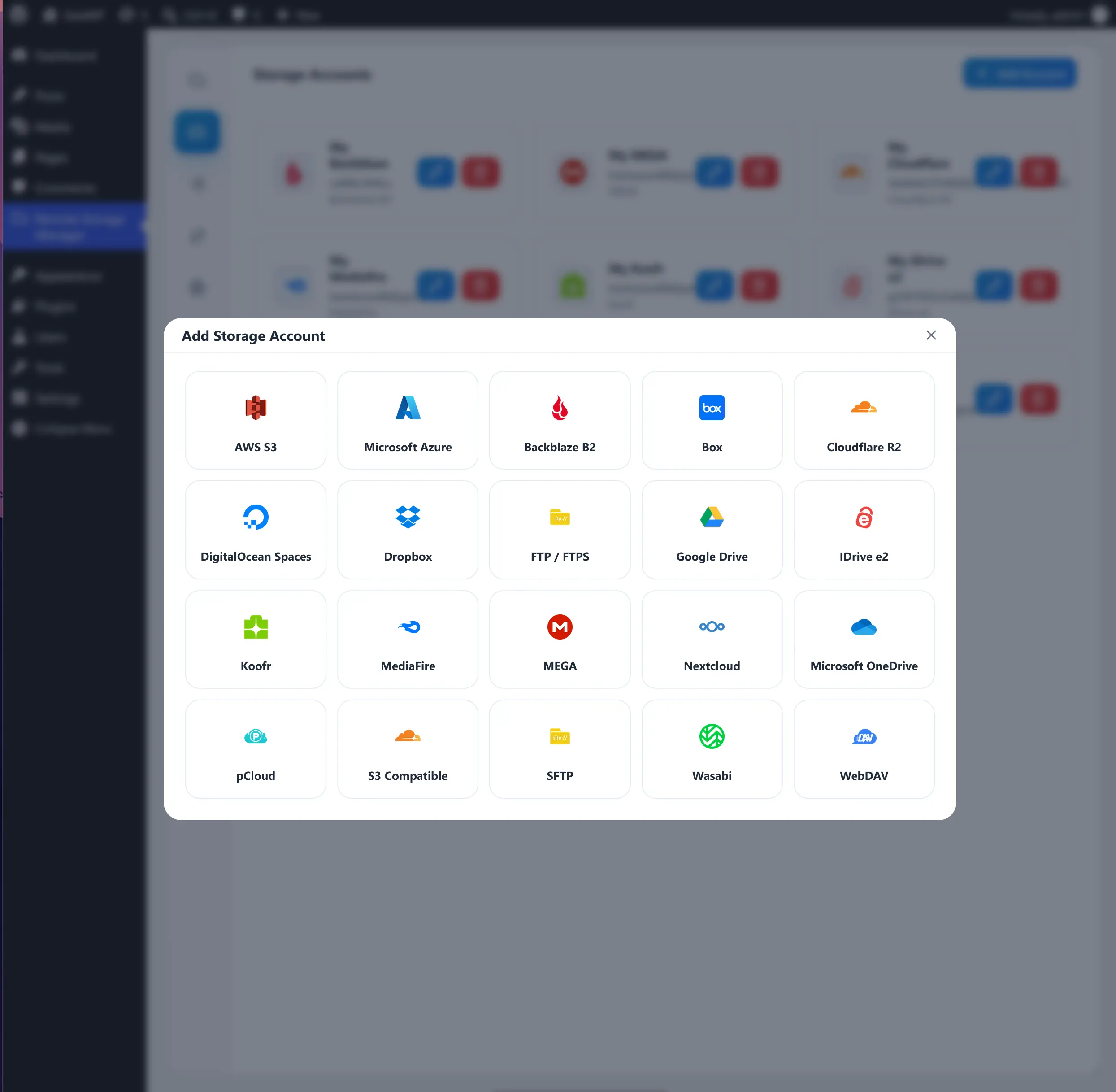
OAuth providers
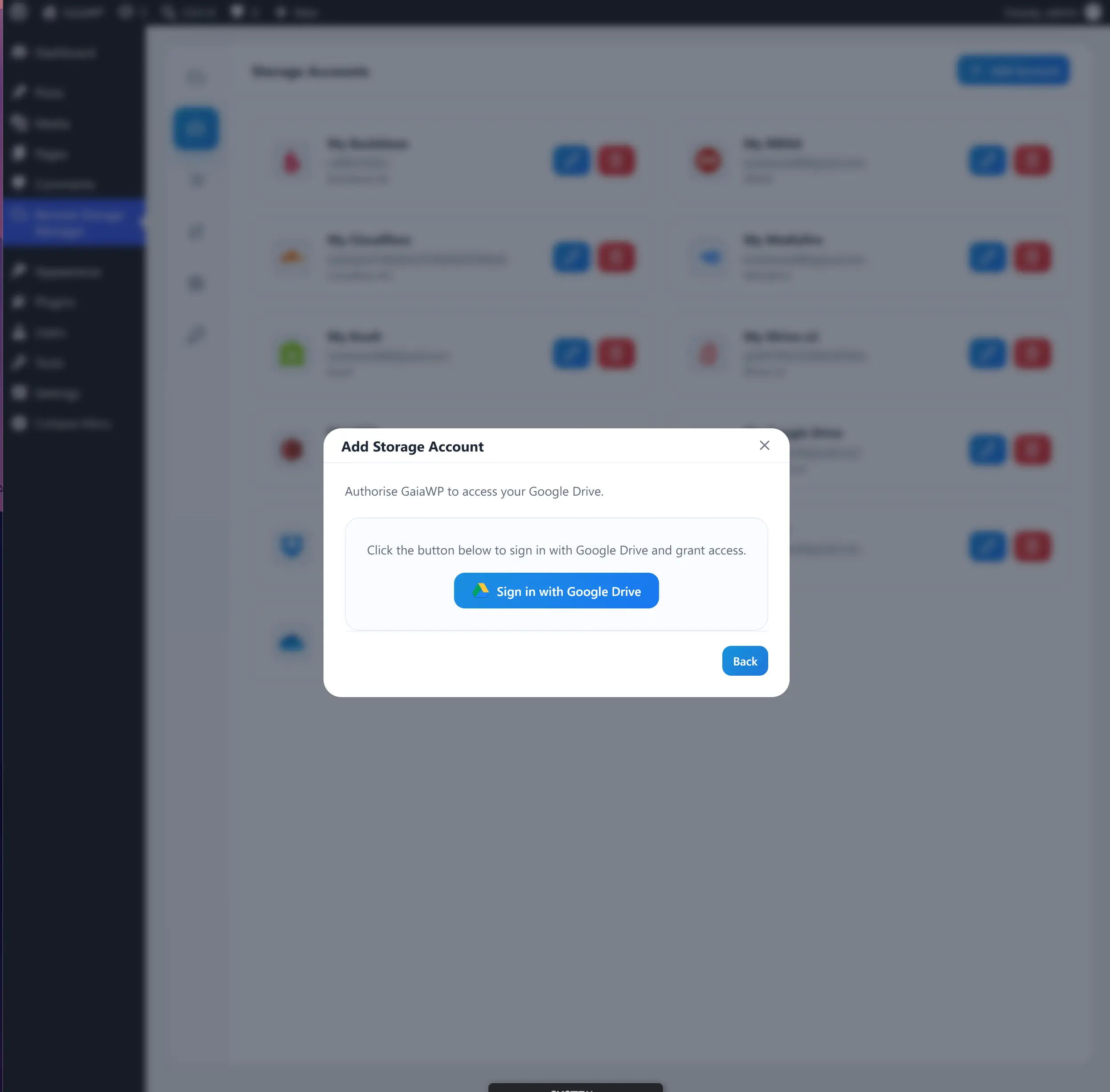
For Google Drive, Dropbox, OneDrive, Box, and pCloud:
- Click the provider card.
- Click Sign in with [Provider].
- Complete the sign-in in the provider's own page and grant access.
- You are redirected back to the Accounts screen and the account appears.
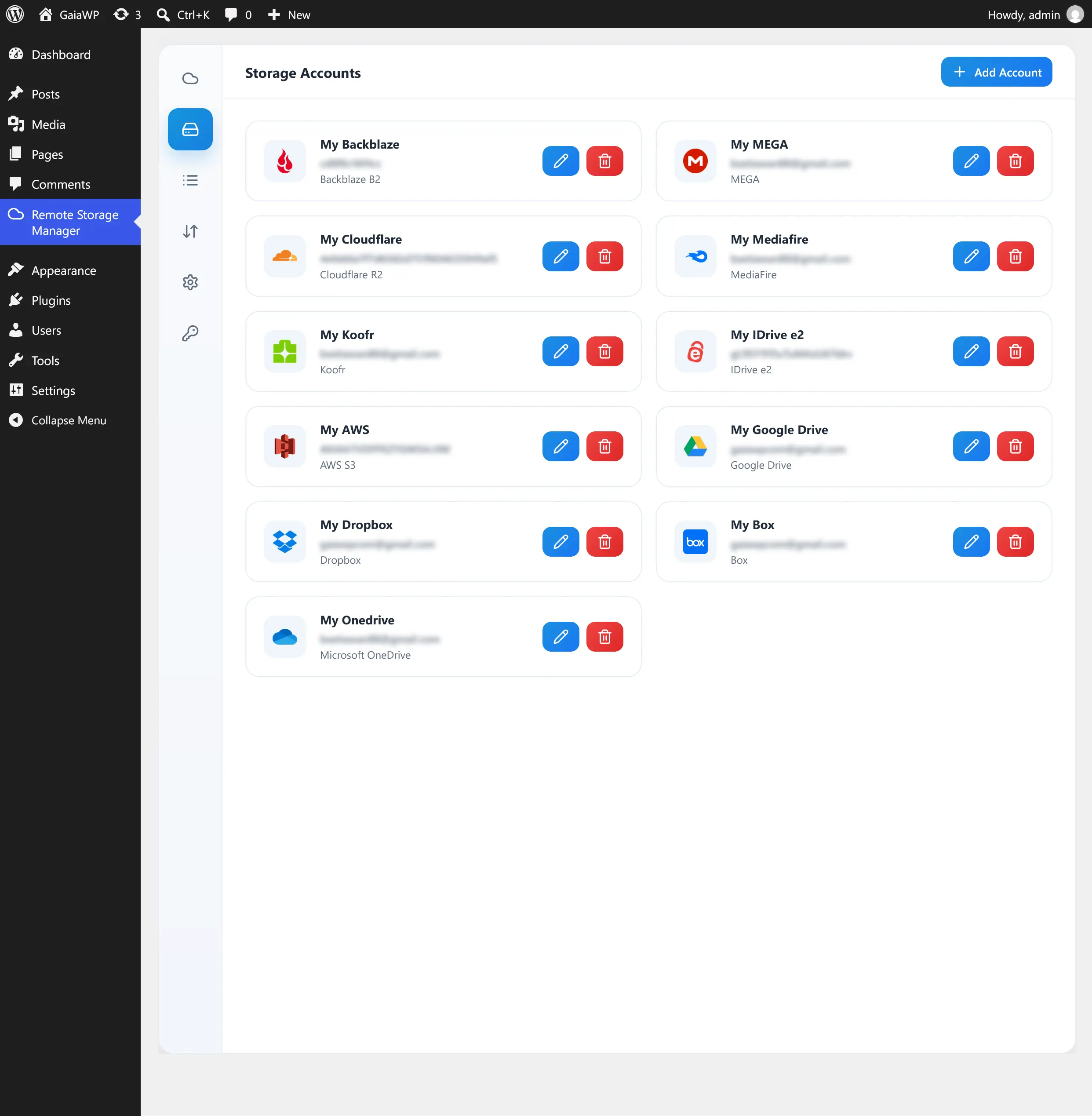
The account is labelled with a default name such as My Google Drive. You can rename it later by editing the account's Label.
Credential providers
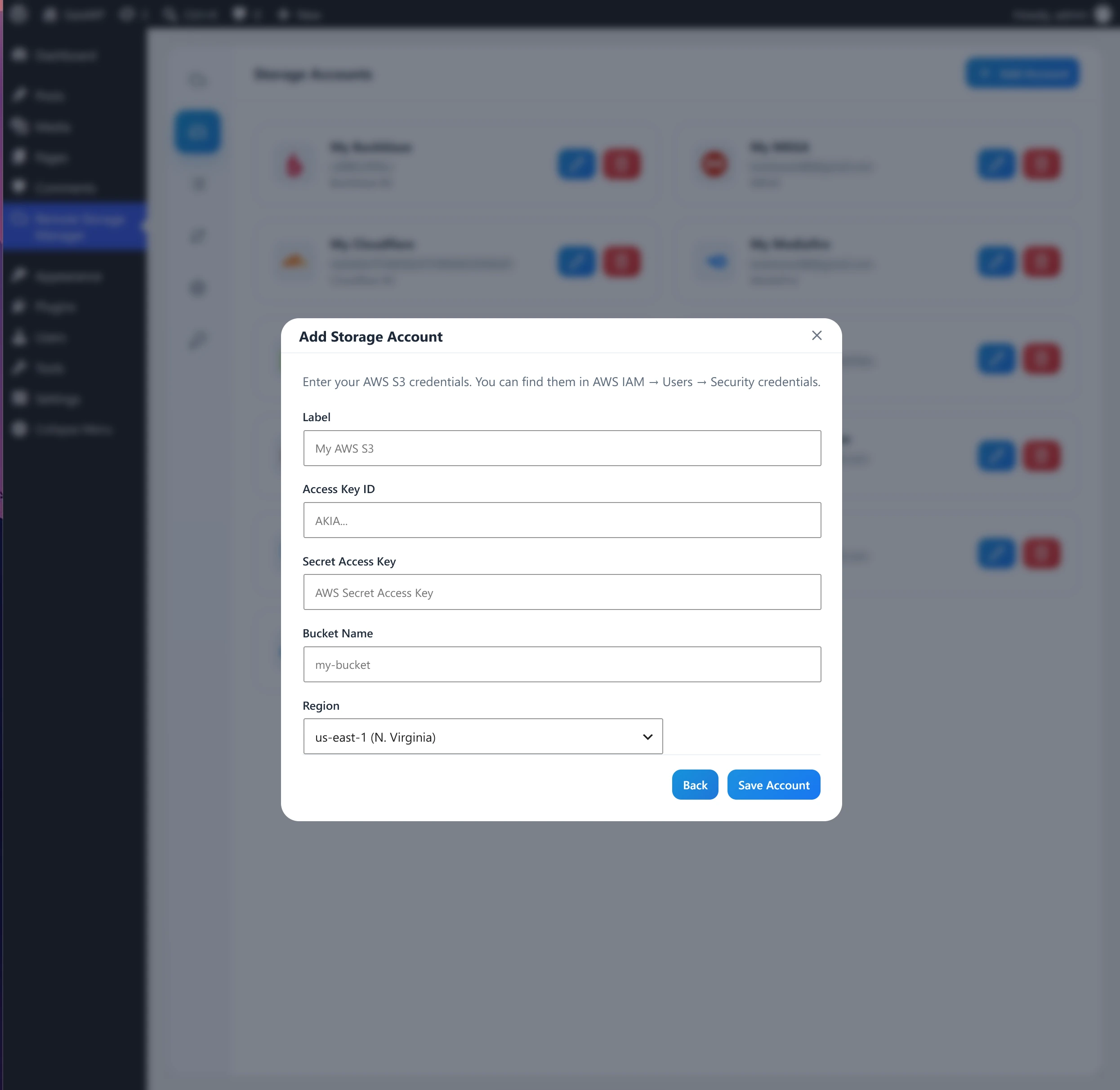
For S3-style, SFTP, FTP, WebDAV, and similar providers, select the provider, then fill in the connection form. Each provider shows only the fields it needs.
AWS S3 example fields: Label, Access Key ID, Secret Access Key, Bucket Name, Region.
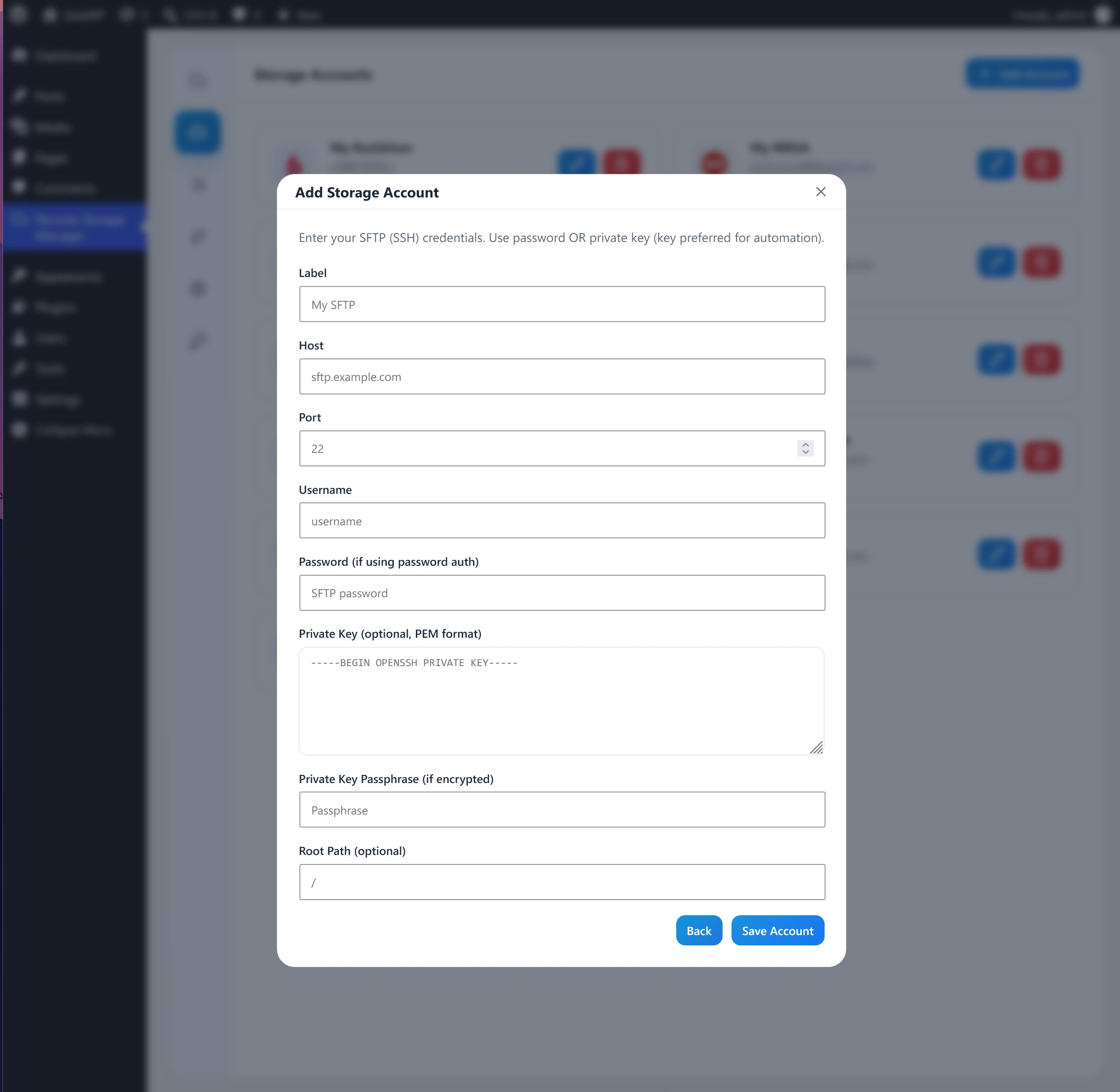
SFTP example fields: Label, Host, Port, Username, Password (optional), Private Key (optional, PEM), Private Key Passphrase (optional), Root Path (optional).
Click Save Account to store the connection. The account then appears as a card on the Accounts screen showing its label, provider logo, and connected identity.
Secrets are never returned to the browser: passwords and private keys are not sent back in account cards. Edit forms show an empty field with the hint "Leave empty to keep current".